
Import of series is done similarly to an import into the main dataset.
Import data to a new series
From the dataset window, click on the three dots in the upper right corner and select "Import series" from the dropdown menu.
Select "New series" and give your new series a name.
Drag and drop or browse for the file you want to import. Note: Avoid the use of quotation marks in the variable names in your file.
Match a column from your file with a unique identifying variable on the main level (e.g. patient ID). It is not recommended to match on a variable of type date, datetime, category, multiple or number with decimals.
Review the names and data types of the remaining variables
Click "Continue"
Your series data is now imported, although it might not be visible in the Dataset window. Open an entry to see the series data. (See "View entries"). The new series is also added to the "Variables" window.
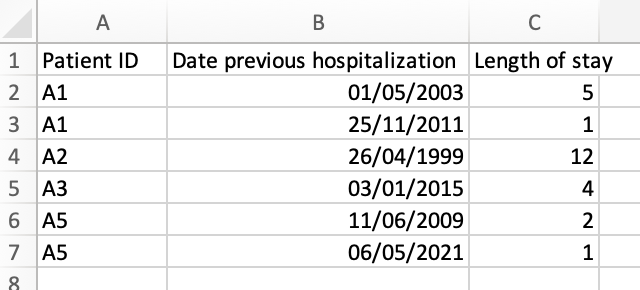
Note that if you have several series entries for one main-level entry, each series entry should be on a separate row in the import file. Additionally, you need to have a column containing the identifying variable used on the main level to match the correct series entry to the main-level entry.
Example: The "Patient ID" column is used to match series-level entries to the correct main-level entry. Patients A1 and A5 have two series-level entries each and therefore have data in 2 rows.
Import data into an existing series
From the dataset window, click on the three dots in the upper right corner and select "Import series" from the dropdown menu.
Click "Existing series" and select the appropriate series from the dropdown menu
Click "Next"
Add more data to an existing series.
Here you can expand your series entries with additional variables and their values. You will need to match your import with both the main-level and the series-level entries.
Click "Add more data to the existing entries"
Drag and drop or browse for the file you want to import.
Match a column from your file with a unique identifying variable on the main level (e.g., patient ID) so the new data will be added to the correct main-level entry.
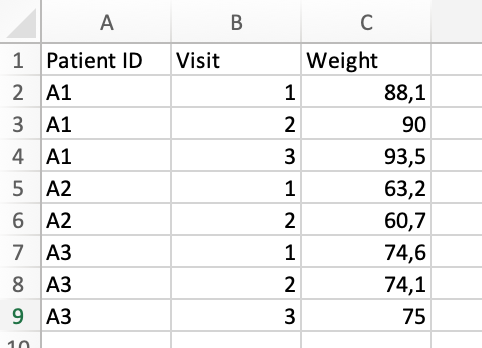
In addition, you need to match the data from your file with the correct series entry. Select the variable identifying each series entry from your file ("File column to match") and from your existing series ("Variable to match") (e.g,. visit). This means you need a unique variable both at the main level and the series level to be able to identify the correct series entry to expand. Example: The "Patient ID" column is needed to match the series-level entry to the correct main-level entry. Additionally, since the series already contains entries to which we want to add more data, the "Visit" column is necessary. In this case, the weight variable will be added to the correct series entry. Note that each series entry is depicted in a separate row in the import file.
Review the names and data types of the remaining variables
Click "Continue"
Your series data is now imported, although it might not be visible in the Dataset window. Open an entry to see the series data. (See "View entries"). The new variables are also added to the series as shown in the "Variables" window.
Add more entries to series
With this option, you can add more entries to your series. To do this, you need to match your import with the main-level entries.
Click "Add more entries to the series"
Drag and drop or browse for the file you want to import.
Match a column from your file with a unique identifying variable on the main level (e.g. patient ID) so the new data will be added to the correct main-level entry.
Review the names and data types of the remaining variables. As for main-level import, you can select variables to include or omit and create new variables.
Click "Continue"
Your series data is now imported, although it might not be visible in the Dataset window. Open an entry to see the series data (See "View entries").
Replace all data in series
As the name implies, this import will replace all the data you might have in your series with the imported data and should be used with care. It is mainly used if something went wrong with your import, and you want to ensure all data is replaced in your next attempt. As for all series imports, you need to define a match with the main-level entry.
Click "Replace all data in series"
Drag and drop or browse for the file you want to import.
Match a column from your file with a unique identifying variable on the main level (e.g., patient ID) so the new data will be added to the correct main-level entry.
Review the names and data types of the remaining variables. As for main-level import, you can select variables to include or omit and create new variables.
Click "Continue"
Your series data is now imported, although it might not be visible in the Dataset window. Open an entry to see the series data (See "View entries").
Series import and main-level match
Series are related to main-level entries, and as described above, all series entries you import must be matched to an entry at the main level. E.g., your series entries must match a specific patient/study participant ID.
Note that any series entry that does not match a main-level entry will be ignored without warning.