
When creating a new project you can choose to import data and variables from an existing file. This can be done in the process of creating your new project:
On the main dashboard, click "New project"
Add project details and click "Continue"
Click "Import data and variables from a file"
or in an empty project
Go to the "Dataset" window
Click "Import dataset"
Click "Replace all project data with new data"
To continue
Drag and drop your data file in the box or browse for the file you want to upload
Ledidi will automatically recognise each column in your file as a variable and its data type. Check whether all the variables' names and datatypes are correct. You will be warned if Ledidi cannot recognize the data type of a variable.
Click "Continue"
If there are any errors in your file, they will be pointed out in the next step. Ledidi will highlight the variable(s) and cell(s) causing the issue. It will also provide you with the option to change the datatype. See below for an example of an error message.
Click "Continue with mapping" after fixing the error in Ledidi or click "Upload again with changes" if you had to make changes to your file.
Your data is imported, and you are redirected to the "Dataset" window.
Example:
We have tried to import a dataset containing the variable "Study site" which should be a categorical variable. However, during import, we erroneously changed the data type to "Number without decimals". Therefore, we receive this report from Ledidi.
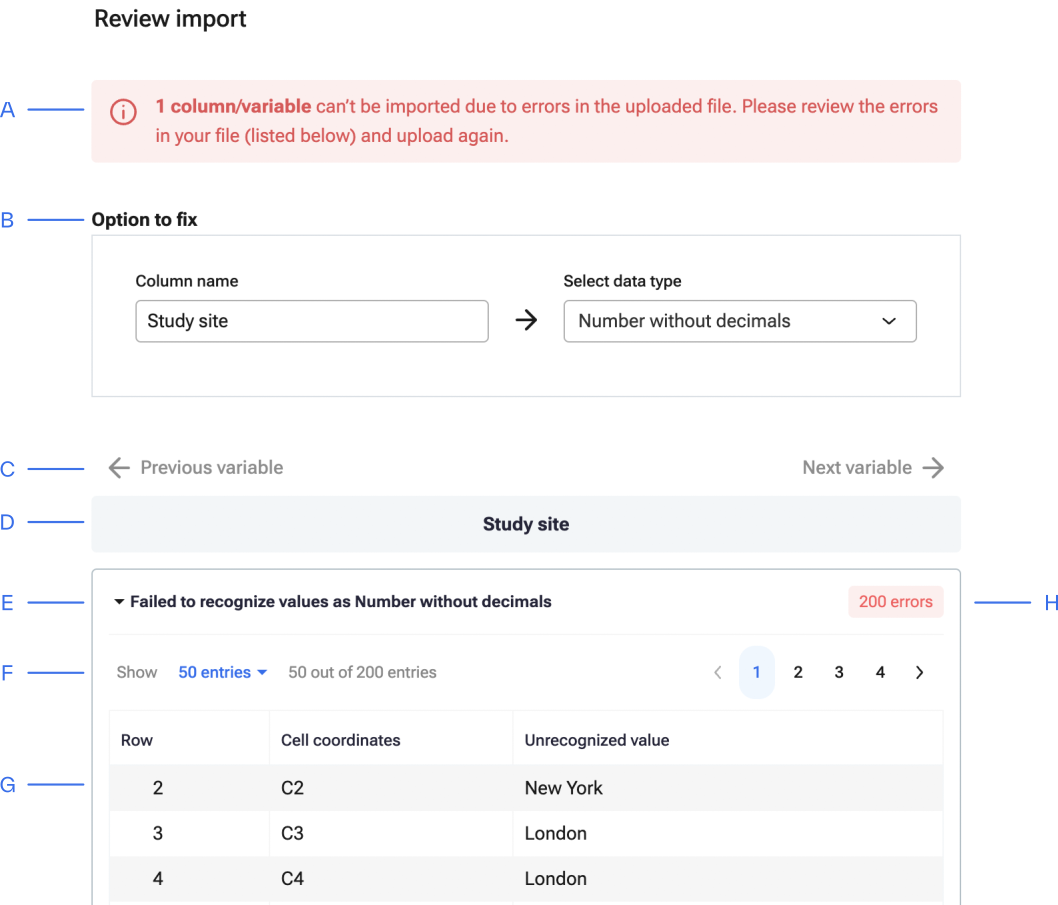
A. Number of columns (i.e. variables) containing an error
B. Option to fix the error by changing the data type
C. Navigate between variables in case of multiple erroneous variables
D. Variable name containing the error(s)
E. Description of the error(s)
F. Amount of errors shown and total number of errors
G. Overview of row(s), cell(s) and value(s) causing the error
H. Total amount of error(s) in this variable
This error can easily be fixed by changing the data type from "Number without decimals" to "Category" in the "Option to fix" window.