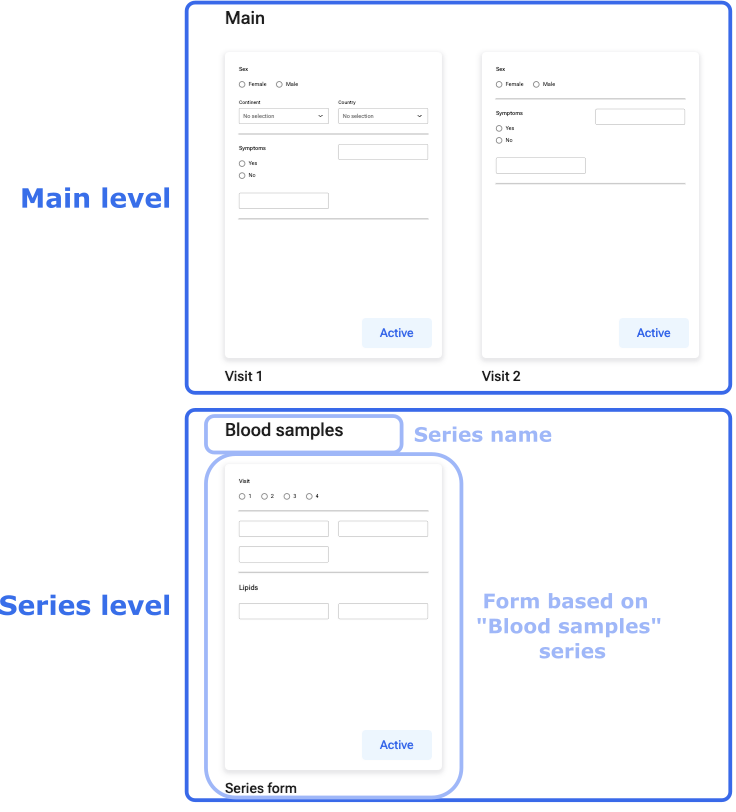
If your project contains one or more series, you can apply them to forms in two ways: Include a complete series in your form (main-level form)
To include a series in a main-level form, create your form in the same way as described in “Create forms”. The series in your project will be available on the left side, together with the other variables in the project.
Drag and drop the series into your form (or click the + - icon next to the series’ card to add the series to your form), along with other variables or variable groups in your project setup. At the main level, you cannot choose which variables within the series to include, but must include the complete series as you made it in the variable view. At this level, it is also not possible to customise the appearance of your series when entering data.
Make a form based on the variables from a specific series (series form). Working with series forms, you can customise a form for entering data into a series and select which of your series’ variables you want to include in the form. It is possible to generate several forms based on one series.
Click “+ New form”
Name your new form
Check the “Create this form based on a specific series” box
Select the series you want to use to build the form from the drop-down menu
Click “Create”
The variables within the selected series and the different modules used to build a form are shown on the left. Build your series form in the same way as a main-level form.
NB: Even if you have created a series-level form, if your series is not included in the main level form, it will not show when you are entering data.
Example: You have a series called “blood samples” which includes 100 different blood parameters (100 variables). Depending on the study visit, you want to include different parameters on each visit (e.g., 100 at baseline visit, 50 at visit 2, and 30 at visit 3). In this case, it will be useful to customise your series so you can choose which parameters to include in each visit. Create 3 forms based on the "Blood samples" series and add the appropriate variables to each form. When entering data in the series, all three forms will be shown at the top of the screen.