
1. Go to "Project Design" and select "Variables".
2. Click "+ New" on the right side of the window. Select "New variable".
3. You must give the variable a unique name (two variables in the same dataset cannot have the same name).
4. You can enter a description if you want to. In the entry form, hover over the small "i" next to your variable to see the description.
5. Under "Variable type", you can choose whether you want the variable to be entered directly (“Entry”) or if you want the entry to be a calculation based on other entries in the dataset (“Calculated”). For calculated variables, see “Calculated variables”.
6. Under "Data type", choose whether the variable will contain categorical data, numeric data (with or without decimals), dates, date and time, text (string), files/images, unique, or time duration. The different data types are explained below.
7. For all data types, you can decide if the entry should be mandatory to fill in by activating the "Mandatory" button. If the variable is set as “mandatory”, the user must enter data/ select a value in order to save or update the entry when filling in new entries. Variables set as "mandatory" are marked with a red * on the variable page, both in the grid and list view. NB: Mandatory variables have to be added to each form! If not, it is not possible to activate the form.
8. "Show as dropdown" and "Fixed values" are explained in more detail below.
9. All data types can be marked as “Restricted”. Activate the "Restricted"-button if the entry contains sensitive information (typically data that directly identifies a person, such as a name, date of birth, address, etc.) that needs to be hidden from project members without access to view such data (See also “Set permissions” under Collaboration).
The different data types explained.
Categorical data (Category and Category Multiple)
Categorical variables are used for structured and repeatedly used text data, such as sex, yes/ no, diagnoses, etc., and can be used in statistical analysis and graphical presentations.
The data type "Category" is used when only one value should be possible to select when entering data. When more than one value should be possible to choose for an entry, use "Category Multiple".
By activating the "Show as dropdown" button, the category values will be shown in a dropdown menu in the entry form (instead of as checkboxes). This is suitable when there are many values. The dropdown alternative is set automatically if there are more than 100 category values in the variable.
Set fixed values
When creating a categorical variable, you can define the values you can choose from when entering data. When the "Fixed values" button is activated, only the predefined values can be chosen when entering data. If you leave the "Fixed values" button inactive, users entering data may choose and define the category values when adding new entries. A “+New value” option will be available in the entry form.
Fixed values can be defined by:
1. Activating the “Fixed values” button
2. Typing in the values you want in the window. Press enter after each value.
3. You can drag and drop the values to change the order. This will change the order both in the entry form and in the order the values appear in tables and graphs in the analyses. New category values can be added at any time later.
4. Click "Create"
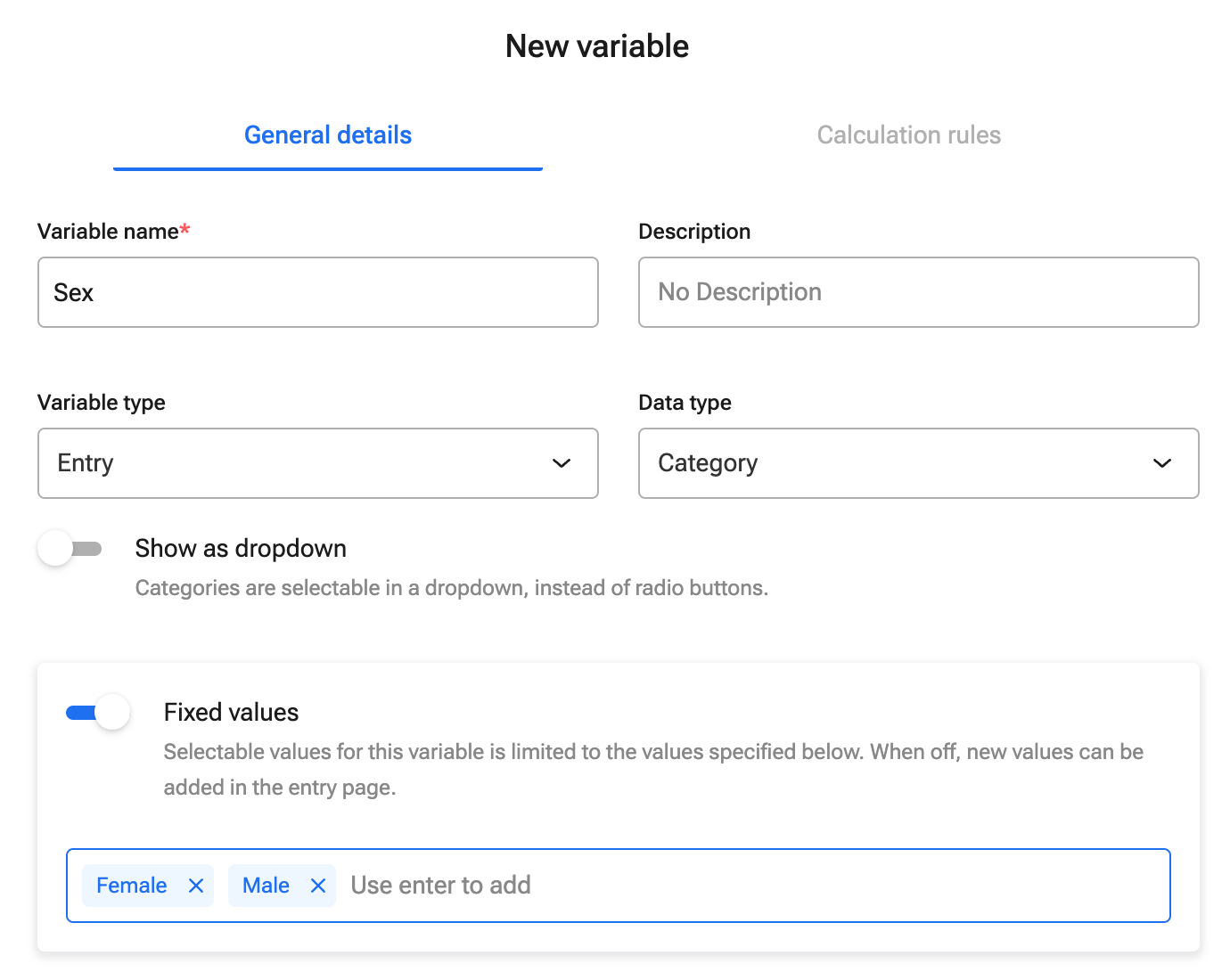
Fixed values can be edited and managed after the categorical variable is created - see "Manage fixed values".
Numeric data
Numeric data can be with decimals or without decimals. For numbers with decimals, you can set the maximum number of decimals you want to see in the dataset window. In the entry form, all digits are displayed.
For numeric variables, you can limit the range of values allowed. Activate the "Validation range" button and enter the minimum and maximum allowed values. During data entry, it will not be possible to enter a value outside of the validation range, as an error message will appear.
Date/ Date and time
Date variables contain dates and are formatted as such (yyyy/mm/dd) in the dataset view. When entering data, Ledidi uses the date format from your internet browser settings.
If you would like to register time as well, use the "Date and time" data type. This includes both the date and time (hours, minutes, and seconds). You can choose whether to use a 12 or 24-hour format under "Personal settings" in your user profile.
For date variables, you can limit the range of dates allowed. Activate the "Validation range" button and enter the minimum and maximum permitted date values. Values outside the range will be rejected if entered in the entry form.
Text data
Text data are entries consisting of plain text, e.g., a name or a comment. Text is unique and unstructured data that cannot be used in statistical analysis or graphical presentations. Therefore, it is generally advised to limit the use of text entries in quantitative research projects.
File or image
This data type can be used if you want to upload files or images belonging to your entry.
When you have uploaded the file or images, please press "Save". Three dots on the right side of the variable will appear. Here you can choose to "Preview", "Download", or "Delete" it.
Unique variable
The "Unique" data type is used for creating a unique identifier on each entry in your project. It is useful in situations where you need to go back and identify a certain entry (e.g., for further data capture) and for pseudonymised datasets where the identifiers are replaced by numbers/codes and kept separately. You can use the Unique variable in three different ways:
1. Manual. Choosing this alternative means you must punch a unique value for each entry. If you try to enter a value already used in another entry, you will get an error message when you try to save your entry ("Some unique field value is already taken"). The value is unique within the project for this variable.
2. Sequence. This alternative will autogenerate a number for each entry (starting with 1 and counting chronologically upward for each new entry). The value is unique within the project for this variable.
3. Universally Unique Identifier. This alternative will automatically assign each entry a unique random string of alphanumeric characters. This value will (with high probability) be unique across projects.
All Unique variables are default set to mandatory.
Time (duration)
The time (duration) data type is used for expressing a time variable or duration. The maximum and minimum variable units can be set to weeks, days, hours, minutes, seconds, milliseconds, and/ or microseconds. The value is converted to a decimal number based on the largest unit specified on the variable. (e.g., 2h:30m becomes 2.5)